

Welcome back! You’ve done amazing so far — first we covered the buttons and power in Lesson 1, then the gestures in Lesson 2. Now it’s time to make your iPhone truly your own.
Today, we’re going to focus on customizing your phone so that it feels easier to see, easier to hear, and easier to use. Because here’s the truth: the iPhone comes with dozens of features designed specifically to help people who want larger text, brighter screens, clearer sounds, and even voice assistance. Apple built these tools for you — and most people don’t even know they exist.
By the end of this lesson, you’ll know how to:
- Make your text bigger and easier to read.
- Adjust your screen brightness so it’s always comfortable.
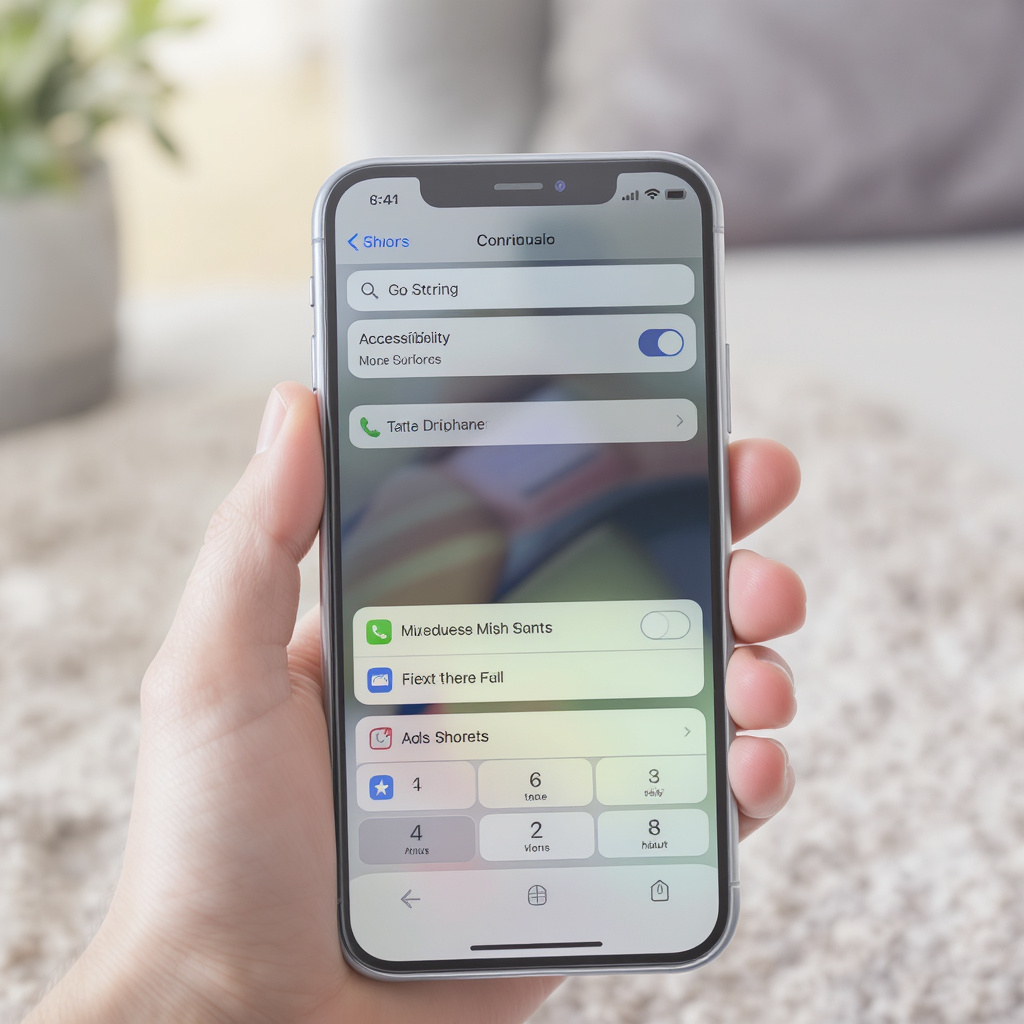
- Turn on accessibility features that make your phone senior-friendly.
Let’s get started with font size.
Take a look at your phone right now. Open your “Settings” app — it looks like a little gray gear. Once you’re in Settings, scroll down until you see “Display & Brightness.” Tap that. Here, you’ll see an option called “Text Size.” When you tap it, you’ll notice a slider. If you slide it to the right, the text on your phone gets larger. Slide it to the left, and it gets smaller.
Go ahead and try it now. Move the slider to a size that feels comfortable to your eyes. Don’t be shy — bigger is better if it means you can read without squinting.
Now, there’s one more setting to make this even better. Go back to “Settings,” then find “Accessibility.” Inside Accessibility, tap “Display & Text Size.” Here, you’ll see an option called “Larger Text.” If you turn this on, you’ll get an even bigger range of text sizes to choose from. Try sliding it all the way up — notice how much easier it is to read? For many seniors, this one adjustment makes using the iPhone go from frustrating to effortless.
Next, let’s talk about brightness. Sometimes the screen feels too dim, and other times it feels like it’s glaring in your eyes. Luckily, you can control this with just a quick swipe. Remember the swipe gesture we practiced in Lesson 2? Swipe down from the very top-right corner of your screen, and you’ll open the Control Center. Here, you’ll see a little sun icon with a bar next to it. Slide your finger up to make the screen brighter, or down to make it dimmer.
A tip: if you’re outside in the sun, you’ll want the brightness turned up. If you’re indoors at night, turn it down so it’s softer on your eyes. And if you’d like your iPhone to adjust automatically, go back to “Settings,” then “Display & Brightness,” and turn on “Auto-Brightness.” That way, your phone will change brightness based on your environment.
Now let’s move to some accessibility features that are real game-changers.
First is Zoom. If text or images are still too small, you can turn on Zoom in the Accessibility settings. Once it’s on, you can double-tap with three fingers to zoom into any part of the screen. This is like having a built-in magnifying glass.
Second is Magnifier. This turns your iPhone into a digital magnifying glass for the real world. Imagine you’re at a restaurant and the menu print is too tiny. Open the Magnifier app, point your camera at the menu, and zoom in until you can read it clearly. This one feature alone makes many seniors feel so much more independent.
Third is Voice Control and Siri. If you ever get tired of typing or tapping, you can simply talk to your phone. Hold down the side button to activate Siri, or say “Hey Siri” if it’s enabled. You can say things like “Call John,” “Send a text to Sarah,” or “Open Photos.” This is great if you have limited mobility in your hands or if you just want to save time.
Another helpful feature is Display Adjustments. Inside Accessibility, you’ll see options like “Bold Text” and “Increase Contrast.” Bold text makes all your writing thicker and easier to see. Increase Contrast makes the colors sharper. You can even turn on “Reduce Motion” if the animations on the screen feel distracting.
And let’s not forget Hearing Accessibility. If you use hearing aids, many modern devices can connect directly to your iPhone. There’s also a feature called “Sound Recognition” that alerts you if your phone hears something important, like a doorbell or a smoke alarm.
Take a breath for a moment. I know that’s a lot of features, but here’s the good news: you don’t need to use them all. Just pick one or two that make your life easier, and that’s enough. Over time, you may come back and try others as you get more comfortable.
Now, here’s your quick win action step:
Go into your settings and adjust at least three things today. First, increase your text size until it feels comfortable. Second, practice adjusting your brightness using the Control Center. And third, try turning on either Magnifier or Siri. Those three adjustments alone will make your iPhone feel more senior-friendly immediately.
Remember, this isn’t about changing everything. It’s about making small tweaks so your iPhone feels like your iPhone. The more it fits you, the more confident you’ll feel using it.
In our next lesson, we’re going to move into the everyday essentials — making calls, sending texts, and setting up voicemail. This is where you’ll really start to feel the joy of connection, because you’ll be using your phone to talk to the people who matter most.
You’re doing fantastic — keep going, and I’ll see you in the next lesson.